

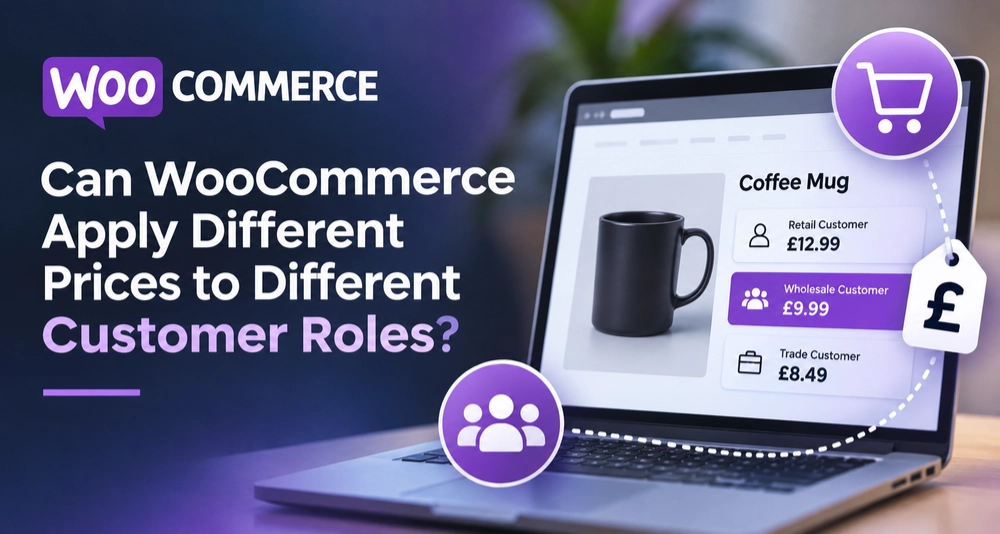
Yes, it can, but not on its own. Out of the box, WooCommerce shows every shopper the same price. A role-based pricing plugin changes that. Here’s how WooCommerce role-based pricing works, which features to look for, and how to set it up.
What Is User Role-Based Pricing?
User role-based pricing means the price depends on the shopper’s account role. Every WordPress account has a role. WordPress gives you a few by default, like customer, subscriber, and shop manager. Want more? Create your own, such as wholesale buyer or VIP member. The product page stays the same—only the price changes for each role.
Store owners use this model for many reasons. Wholesale buyers may need lower rates. Loyal members may deserve a special perk. Some roles may need to see no price at all. One catalog can serve every one of these groups.
Does WooCommerce Support Role-Based Pricing by Default?
Not right out of the box. Core WooCommerce lets you set a regular price and a sale price on each product. Everyone sees the same numbers, whatever their role. To get WooCommerce role-based pricing, you’ll need to add a plugin. Several plugins offer this feature. Some are sold on marketplaces such as CodeCanyon, and many include a live demo.
What Does a User Role Pricing Plugin Do?
A dedicated WooCommerce role-based pricing plugin lets you set any price for different user roles. It also supports shop catalog mode. Price changes happen at the product level. The plugin can also change shipping charges based on user roles. You can even hide or empty the price for a specific role.
Key Features at a Glance
- Pricing by user role. Each role can see its own price. You choose the amount.
- Different prices per role. Enable separate prices for separate roles. One product can carry several prices.
- Product-level pricing. Set prices on each product individually. This gives you precise control.
- Empty prices. Leave a price empty for a chosen role. That role then sees no price.
- Hidden Add to Cart button. When a price is empty, the button disappears. Those shoppers cannot add the item.
- Shipping by role. Shipping costs can change with the shopper’s role too. A wholesale buyer might pay a different rate than a retail customer.
Pair empty prices with a hidden button, and you’ve got a catalog mode for the roles you choose.
How to Set Up WooCommerce Role-Based Pricing
Setup is simple. Work through it in this order.
- Step 1: Define your roles. Think about who shops with you. Maybe it’s casual retail buyers, bulk wholesalers, or paying members. Pick the groups that deserve their own prices.
- Step 2: Get the plugin. Buy it from the marketplace and grab the zip file. Upload it through Plugins > Add New in WordPress, then hit Activate.
- Step 3: Enter role prices. Open a product and fill in a price for each role. Prices are set product by product.
- Step 4: Set empty prices if needed. Leave a price empty to hide it from a role. The Add to Cart button hides too.
- Step 5: Test every role. Log in with a dummy account for each role. Browse the shop, fill a cart, and walk through checkout.
Menus can look a little different between plugin versions. Skim the documentation before you start.
Practical Examples of Role-Based Pricing
Picture an online shop that sells coffee beans. Retail shoppers pay $20 per bag. Cafe owners with a wholesale role pay $14 for the same bag. The store sets each price at the product level. These figures are only an illustration.
Now picture a product reserved for members. The store leaves its price empty for the customer role. Those shoppers see no price and no Add to Cart button. Members see the full price and can buy.
Shipping offers another use. A wholesale role might pay a different shipping charge than retail buyers. The plugin lets you adjust shipping charges by role.
Compatibility and Requirements
Check the listing details before you buy. Compare its supported versions against your own WooCommerce and WordPress setup. Try it on a staging site before going live.
Benefits of User Role-Based Pricing
Role-based pricing lets one catalog serve many kinds of buyers. You don’t need a separate shop for each group. Every role follows its own pricing rules, so things stay tidy. Buyers also like seeing offers that fit their status. That often brings them back for more.
Control over visibility adds another benefit. You can show prices only to approved roles. Everyone else sees the products without a buy option. This protects negotiated rates from casual browsers.
Best Practices for WooCommerce Role-Based Pricing
- Keep roles simple. Start with two or three roles. Add more only when you need them.
- Plan your prices. Write a table of roles and target prices first. This prevents mistakes later.
- Test each role. Check what every account actually sees, from the shop page to the receipt.
- Review hidden prices. Empty prices remove the buy button. Double-check products that should stay purchasable.
- Use a staging site. Try updates there first. Then move changes to your live store.
- Explain your pricing. Tell approved buyers how to get their role. Clear communication reduces support requests.
Common Mistakes to Avoid
Many stores repeat the same few errors. Avoiding them saves hours of cleanup. First, some owners create too many roles. The pricing then becomes hard to manage. Second, others forget to test shipping charges. Role-based shipping needs the same care as product prices. Third, some leave prices empty by accident. Those shoppers then cannot buy anything. Always review your settings before launch.
Frequently Asked Questions
Can WooCommerce show different prices to different roles?
Yes, with a plugin. Core WooCommerce does not include this feature.
Can I change shipping charges by role?
Yes, some plugins support this. The plugin described here adjusts shipping charges based on user roles.
Can I hide a price for one role?
Yes, you can make the price empty. The Add to Cart button then hides as well.
Does it work at the product level?
Yes, you set prices on each product. This gives you detailed control.
Final Thoughts
WooCommerce can’t do role pricing by itself. A good plugin fills that gap without much effort. A dedicated tool sets prices by role and by product. It can also adjust shipping and hide prices for chosen roles. Start by listing your roles and target prices. Then test every role on a staging site. Revisit your role prices every few months. Well-planned user role-based pricing turns one catalog into several tailored offers. Set it up carefully, and WooCommerce role-based pricing will keep your store tidy and competitive.